

Lúc trước tôi có bài giới thiệu về các softs để dùng PC điều khiển Palm, giờ thì có vài softs ngược lại: Bạn hòan tòan có thể điểu khiển PC từ xa bằng Palm nhờ vào một trong các softs sau:
1. RemotePlus for Palm OS:
Dihuta đã rì viu ở đây: http://www.handheldvn.com/forum/showthread.php?t=16270
2. PalmVNC:


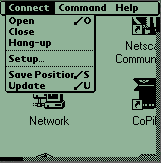
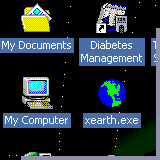
PalmVNC is a client for the Palm family of hand-held computers that provides remote access to your desktop PC, Mac, or UNIX workstation over a normal TCP/IP network connection.
Ultra-thin client uses less than 40Kb of Palm memory.
VNC servers available for a wide variety of platforms.
Desktop displayed in colour on Palm IIIc devices.
Desktop displayed in 4- or 16-shade greyscale on other devices.
Supports server-side scaling to reduce bandwidth.
Can be stored in Flash memory using TRG's FlashPRO.
Freeware, with full source available under GNU GPL.
Installation
Windows Users: You can install PalmVNC and WinVNC Server with Scaling Extensions by running SETUP.EXE after unzipping the file
MAC Users: You can install the PalmVNC client directly after unzipping the file by clicking on PALMVNC.PRC. You will also need a VNC server.
Updated Description:
New/updated features in 1.40:
Integrated WinVNC 3.3.3r7-based server with scaling extensions.
Full installation package for Windows systems.
Multiple server profiles now supported.
Improved connection management and performance.
Improved progress bars.
Now compatible with POSE 3.0a7.
New, improved online documentation.
Download ở đây:
3. Mobile TS V1.0 :

Remotely access your office computer using your wireless PalmOS device and Windows Terminal Service!
Mobile TS is the first and only application to connect Palm OS handhelds to Windows desktops and workstations via the Terminal Services or Remote Desktop capabilities built into many Microsoft Windows operating systems.
While working at another office or traveling, using your Palm OS handheld, remotely control your data, applications, and network resources that are on your office computer, without being there.
Uses RDP Protocol to securely (SSL encryption) and efficiently control your computer remotely, via Internet or network connection.
Mobile TS takes advantage of the new wireless enabled handhelds, high-resolution screens, and DPad controls, to allow a rich user experience.
What is Terminal Services? Terminal Services is a multi-session environment that provides remote computers access to Windows-based programs running on more powerful versions of the Windows Operating system. It is based on Microsoft's own RDP (Remote Desktop Protocol) and is known and widely used in the enterprise for accessing Windows desktops from remote locations.
Why use RDP?
Speed - The RDP Protocol is highly efficient on network bandwidth, meaning that connecting over slower connections like dialup, GSM/GPRS, or 2.5G networks is still a highly usable option, and connecting over high speed connections like Wi-Fi approach the performance of actually sitting at a real desktop. Unlike other remote access protocols, RDP uses smart and efficient compression and transmission methods allowing a large (1024x768) screen application window to be drawn as fast as a small one, through the use of font caching, bitmap caching, and many different drawing primitives. To the end user this means a useful experience even on slow wireless connections.
Security - The RDP Protocol connects via SSL, so all the transmission is secure. No passwords are stored, nor are they transmitted differently than anything else during the transmission, as the receiving end (the Windows computer) takes care of showing the password dialog via the connection.
Screen Size Scalability - As part of the connection, you can choose the desktop size, and the server will scale all windows and controls accordingly to match the desktop size specified. Mobile TS support several sizes ranging from 320x320 to 1024x768. This means you can specify to have every window sized to your handheld's smaller screen and not have to continually scroll around to read everything on your desktop, like most other solutions. Or you have the option to keep your desktop screen larger and scroll around to see the whole area. The choice is not limited by the technology in this case!
Caching and Performance Scalability - The RDP protocol allows for caching as memory permits, so Mobile TS performance scales to match the memory footprint of the handheld device. The more free memory you have, the more font and bitmap caching is supported and therefore the better the performance.
--------------------------------------------------------------------------------
Enterprise Accepted Solution - Since the introduction of Terminal Services with Windows NT4 Terminal Services edition, enterprises have been widely using Terminal Services for their Thin Client solution. It's an industry accepted solution and not just an untested proprietary protocol.
No Additional Server Software required - For companies using OS' equipped with Terminal Services (like Windows 2000 Server, and Windows 2003 Server) and Remote Desktop (built into Windows XP Professional), there is no additional software to install on the server. No other communication
Updated Description:
Mobile TS now supports handhelds running Palm OS 3.5 or higher (though it is still optimized for Palm OS 5 and higher)! You can now run Mobile TS on your Treo 180, 270, 300 or Kyocera 7135 mobile phone! In addition, we have added support for a popup windows style keyboard!

(Internet Explorer running on a Sony UX50 handheld)Download ở đây:
4. Win-Hand:


This private VPN Connection Service resolves the complexity of Networks, firewall, Routers, etc. This service allow you to connect from anywhere your PDA is located to anywhere your Remote Computer is, even if both are protected by multiple firewalls. Zero configuration needed even for accessing through Corporate Networks: it is a miracle in Security and Network connectivity. All your Documents... on the Go... including WiFile(s)...
Control your home or Office computer through your Palm with Win-Hand.
• Unbreakable End-to-End security,
• Goes through 99.5% of all Firewalls(1), Any Network(2), Any Router,
• Works with Any modem: Bluetooth, WiFi, 1xRT, GPRS, USB, etc.
• Runs on Any version of Palm OS (3.0+) and Windows (95+)
• From Anywhere you are with your PDA to Anywhere your Remote computer is located: "You've got the power..."
Requirements: Any Palm OS Hardware, Palm OS 3.0
Resolutions Supported:
Sony Hi-Res (320x320)
Sony Hi-Res+ (320x480)
Palm Hi-Res (320x320)
Palm Standard (160x160)
Handera Hi-Res (240x320)
Palm Hi-Res (320x480)
Palm Hi-Res Landscape (320x480)
Tapwave Full Screen (480x320)
Tapwave (320x320)


(Actual speed with a LifeDrive connected through a LAN) Download ở đây:
MỜI CÁC BÁC VỌC THỬ!!!
1. RemotePlus for Palm OS:
Dihuta đã rì viu ở đây: http://www.handheldvn.com/forum/showthread.php?t=16270
2. PalmVNC:
PalmVNC is a client for the Palm family of hand-held computers that provides remote access to your desktop PC, Mac, or UNIX workstation over a normal TCP/IP network connection.
Ultra-thin client uses less than 40Kb of Palm memory.
VNC servers available for a wide variety of platforms.
Desktop displayed in colour on Palm IIIc devices.
Desktop displayed in 4- or 16-shade greyscale on other devices.
Supports server-side scaling to reduce bandwidth.
Can be stored in Flash memory using TRG's FlashPRO.
Freeware, with full source available under GNU GPL.
Installation
Windows Users: You can install PalmVNC and WinVNC Server with Scaling Extensions by running SETUP.EXE after unzipping the file
MAC Users: You can install the PalmVNC client directly after unzipping the file by clicking on PALMVNC.PRC. You will also need a VNC server.
Updated Description:
New/updated features in 1.40:
Integrated WinVNC 3.3.3r7-based server with scaling extensions.
Full installation package for Windows systems.
Multiple server profiles now supported.
Improved connection management and performance.
Improved progress bars.
Now compatible with POSE 3.0a7.
New, improved online documentation.
Download ở đây:
Mã:
http://www.palmgear.com/software/act_redirector3.cfm/TYPEzip/PID7778/palmvnc.zip3. Mobile TS V1.0 :
Remotely access your office computer using your wireless PalmOS device and Windows Terminal Service!
Mobile TS is the first and only application to connect Palm OS handhelds to Windows desktops and workstations via the Terminal Services or Remote Desktop capabilities built into many Microsoft Windows operating systems.
While working at another office or traveling, using your Palm OS handheld, remotely control your data, applications, and network resources that are on your office computer, without being there.
Uses RDP Protocol to securely (SSL encryption) and efficiently control your computer remotely, via Internet or network connection.
Mobile TS takes advantage of the new wireless enabled handhelds, high-resolution screens, and DPad controls, to allow a rich user experience.
What is Terminal Services? Terminal Services is a multi-session environment that provides remote computers access to Windows-based programs running on more powerful versions of the Windows Operating system. It is based on Microsoft's own RDP (Remote Desktop Protocol) and is known and widely used in the enterprise for accessing Windows desktops from remote locations.
Why use RDP?
Speed - The RDP Protocol is highly efficient on network bandwidth, meaning that connecting over slower connections like dialup, GSM/GPRS, or 2.5G networks is still a highly usable option, and connecting over high speed connections like Wi-Fi approach the performance of actually sitting at a real desktop. Unlike other remote access protocols, RDP uses smart and efficient compression and transmission methods allowing a large (1024x768) screen application window to be drawn as fast as a small one, through the use of font caching, bitmap caching, and many different drawing primitives. To the end user this means a useful experience even on slow wireless connections.
Security - The RDP Protocol connects via SSL, so all the transmission is secure. No passwords are stored, nor are they transmitted differently than anything else during the transmission, as the receiving end (the Windows computer) takes care of showing the password dialog via the connection.
Screen Size Scalability - As part of the connection, you can choose the desktop size, and the server will scale all windows and controls accordingly to match the desktop size specified. Mobile TS support several sizes ranging from 320x320 to 1024x768. This means you can specify to have every window sized to your handheld's smaller screen and not have to continually scroll around to read everything on your desktop, like most other solutions. Or you have the option to keep your desktop screen larger and scroll around to see the whole area. The choice is not limited by the technology in this case!
Caching and Performance Scalability - The RDP protocol allows for caching as memory permits, so Mobile TS performance scales to match the memory footprint of the handheld device. The more free memory you have, the more font and bitmap caching is supported and therefore the better the performance.
--------------------------------------------------------------------------------
Enterprise Accepted Solution - Since the introduction of Terminal Services with Windows NT4 Terminal Services edition, enterprises have been widely using Terminal Services for their Thin Client solution. It's an industry accepted solution and not just an untested proprietary protocol.
No Additional Server Software required - For companies using OS' equipped with Terminal Services (like Windows 2000 Server, and Windows 2003 Server) and Remote Desktop (built into Windows XP Professional), there is no additional software to install on the server. No other communication
Updated Description:
Mobile TS now supports handhelds running Palm OS 3.5 or higher (though it is still optimized for Palm OS 5 and higher)! You can now run Mobile TS on your Treo 180, 270, 300 or Kyocera 7135 mobile phone! In addition, we have added support for a popup windows style keyboard!
(Internet Explorer running on a Sony UX50 handheld)
Mã:
http://www.palmgear.com/software/act_redirector3.cfm/TYPEzip/PID52506/setup_mobiletsdemopalmgear.exe4. Win-Hand:
This private VPN Connection Service resolves the complexity of Networks, firewall, Routers, etc. This service allow you to connect from anywhere your PDA is located to anywhere your Remote Computer is, even if both are protected by multiple firewalls. Zero configuration needed even for accessing through Corporate Networks: it is a miracle in Security and Network connectivity. All your Documents... on the Go... including WiFile(s)...
Control your home or Office computer through your Palm with Win-Hand.
• Unbreakable End-to-End security,
• Goes through 99.5% of all Firewalls(1), Any Network(2), Any Router,
• Works with Any modem: Bluetooth, WiFi, 1xRT, GPRS, USB, etc.
• Runs on Any version of Palm OS (3.0+) and Windows (95+)
• From Anywhere you are with your PDA to Anywhere your Remote computer is located: "You've got the power..."
Requirements: Any Palm OS Hardware, Palm OS 3.0
Resolutions Supported:
Sony Hi-Res (320x320)
Sony Hi-Res+ (320x480)
Palm Hi-Res (320x320)
Palm Standard (160x160)
Handera Hi-Res (240x320)
Palm Hi-Res (320x480)
Palm Hi-Res Landscape (320x480)
Tapwave Full Screen (480x320)
Tapwave (320x320)
(Actual speed with a LifeDrive connected through a LAN)
Mã:
http://www.win-hand.com/downloads/Win-HandAnywhere_Installer.zip
